Article · Storage
MacBook Storage Full? What to Do When Space Runs Out
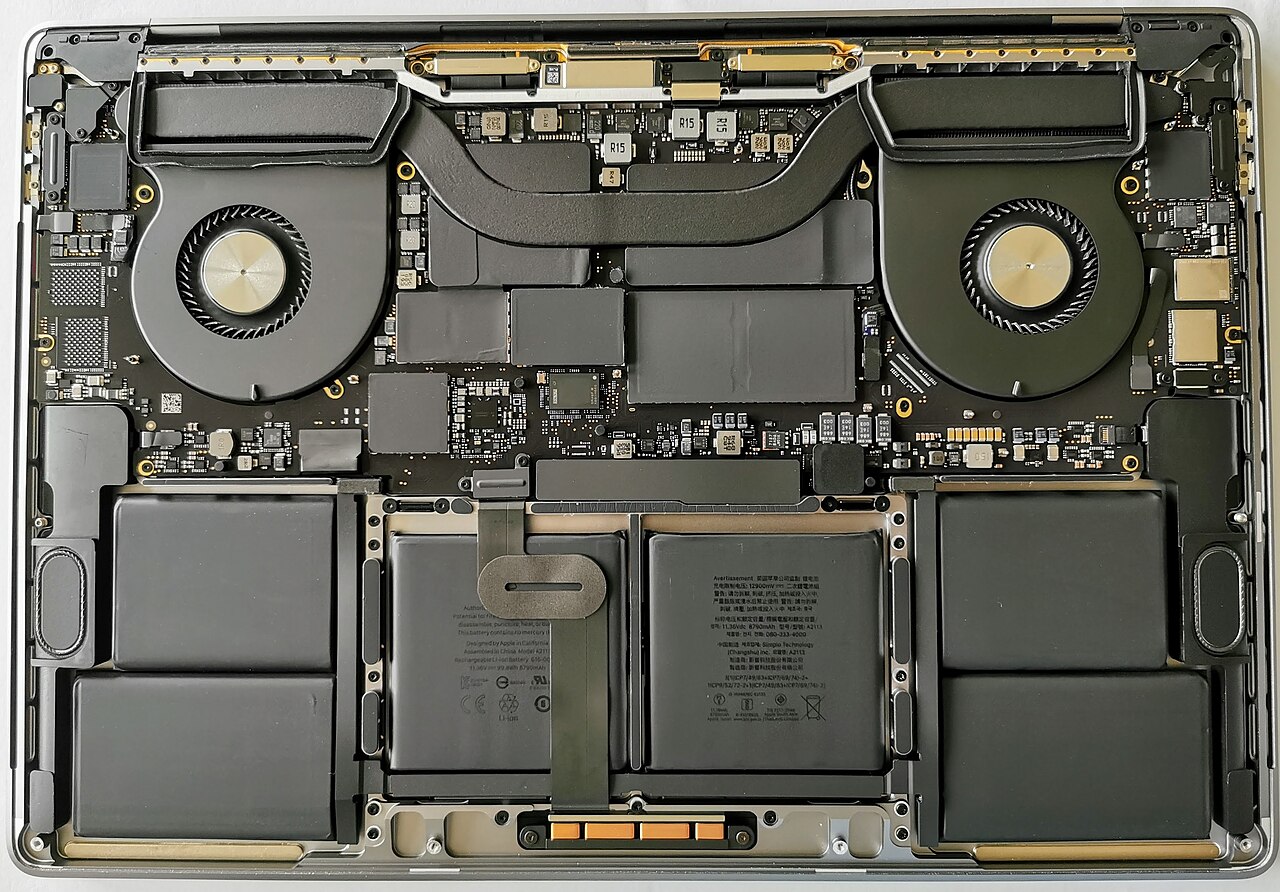
One day the machine you have been using for years refuses to save a file. The drive is full, the warning will not go away, and the numbers in the storage pane do not seem to add up. This guide explains where the space actually goes and how to get it back, in the order that works.
Start with the storage overview
Before you delete anything, look at the map. On a modern Mac, open the Apple menu, choose System Settings, then General, then Storage. On older systems the same information lives in About This Mac, then Storage. You will see a bar broken into categories: Applications, Documents, System Data, macOS, Photos, Mail, Messages, and often a large grey slice labelled Other or System Data. That grey slice is the one that confuses people most, and it is worth understanding before you attack it.
The overview is a map, not a measurement. It updates slowly, it rounds, and it sometimes counts the same bytes twice while a background task is running. Do not expect the numbers to reconcile to the last megabyte. What you are looking for is the shape of the problem: is one category enormous, or is everything moderately large at once?
What System Data and Other actually contain
System Data is a catch-all. It holds things the system cannot attribute to a neat category: caches, logs, temporary files, local snapshots, the working files of applications that keep a database rather than a document, and the leftovers of software you have already removed. In older versions of macOS the same bucket was called Other and it behaved identically. A System Data figure of a few gigabytes is normal. A figure of forty or eighty gigabytes is a signal that something is hoarding space.
The most common hoarders are, in rough order of how often we see them: local Time Machine snapshots, iCloud and browser caches, Mail downloads and attachments, Messages attachments (photos and videos people send each other are far larger than they realise), app caches for creative tools and developer tools, and the remnants of large applications that were dragged to the bin without being fully removed.
Check Time Machine local snapshots first
If your Mac is backed up with Time Machine and the backup disk is not always connected, macOS quietly keeps local snapshots on the internal drive so it can still offer an hourly history. Those snapshots can occupy tens of gigabytes, and they do not always show up clearly in the storage pane. They are also usually harmless to remove, because the real backup lives on the external disk.
You can see them in the Terminal with a command that lists local snapshots, and the system will thin them automatically when space runs low, but a machine that has been offline from its backup disk for weeks can accumulate a surprising pile. If you are comfortable with a terminal, this is the single fastest win on many full drives; if you are not, reconnecting the Time Machine disk and letting one backup complete will often clear them for you.
Trash, downloads and the obvious caches
Then do the unglamorous work. Empty the Trash, including the part that refuses to empty because a file is locked. Clear out the Downloads folder, which on many machines quietly holds years of installers and PDFs. Empty the caches inside your browsers, and review the downloads inside whatever chat and mail applications you use. A single group chat can hold gigabytes of video that you never intended to keep.
Be careful with anything labelled a system cache that you do not recognise. Deleting the wrong folder underneath the library directories can break an application's state or, worse, confuse a database. Prefer the in-app “clear cache” or “free space” option where the application offers one, and leave the rest alone.
Messages attachments: the hidden heavyweight
The Messages app keeps every photo, video and voice note it has ever received, and it keeps them locally unless you have changed the default. For a heavy user this is one of the largest single consumers on the drive. The fix is straightforward: open the storage settings for Messages, or use the attachment view inside the app, and delete the large attachments you no longer need. Recent versions of macOS make this considerably easier than they used to, and you can usually keep the conversation text while deleting the media inside it.
Photos and the iCloud question
Photos are the other big consumer, and here the iCloud setting matters enormously. If you have iCloud Photos with the Optimise Mac Storage option enabled, your Mac keeps smaller versions locally and stores the originals in the cloud, which frees a great deal of space. If you have chosen to download originals, every photo and video lives on the internal drive in full resolution, and a modern phone library can easily reach hundreds of gigabytes.
Switching to optimised storage is the right move for most people who are short of disk space, but it is a genuine trade: you become dependent on a working internet connection to reach the full-resolution originals. If you would rather not depend on the cloud, an external drive and a proper photo library strategy is the honest answer, and we cover that below.
Find the large files, not just the categories
When the categories do not explain the problem, hunt by size. The storage pane lets you sort applications by size, and a good file-search tool lets you sort the whole drive by file size. Look for a handful of files in the tens of gigabytes: virtual machine images, video projects, downloaded operating-system installers, older photo libraries, and that one enormous archive you have been meaning to look at for three years. Deleting two or three strategic files often recovers more space than hours of tidying small ones.
Be methodical, and do not delete a file you do not recognise just because it is large. A big file inside a library folder may be the index of a database your photo or mail application needs. Move such files to an external drive and test the application before you delete anything permanently.
External storage and the long-term fix
For many machines, the durable answer is an external solid-state drive. Moving photo libraries, video projects and archives to an external SSD keeps the internal drive healthy and leaves the laptop fast. A few practical rules: choose an SSD rather than a spinning disk for portability, keep one copy on the drive and a second copy elsewhere, and never treat a single external drive as your only backup. The 3-2-1 pattern, three copies, on two kinds of media, with one off site, is still the standard for a reason.
macOS storage management tools that do the work for you
Several built-in features deserve attention. Optimise Mac Storage reduces local footprint by moving eligible files to iCloud. The stored-in-iCloud view shows you files that exist only in the cloud on this Mac. The “Review Files” and large-file tools in the storage pane group clutter so you can approve deletions in a batch. And the automatic emptying of the Trash after thirty days keeps the corner from filling up again. Used together with an external drive, these tools usually keep a machine comfortable for years.
When the drive itself is the problem
Sometimes a full disk is not a housekeeping problem but a hardware one. Signs that you are past software housekeeping include a drive that reports errors, a machine that refuses to boot after a failed update, storage that disappears from the overview entirely, or a system that runs painfully slowly even after you have freed tens of gigabytes. Solid-state storage wears out, and a drive that has thrown errors is a drive that should be replaced before it takes your data with it.
On models with a soldered drive, replacement is not a customer task, and on older models with a removable drive it still requires the right parts and a careful migration. This is exactly the kind of work our mail-in services cover: storage and setup work, clean rebuilds that keep your data in place, and honest advice about whether a failing drive is worth repairing at all. If you are unsure whether your problem is a full disk or a failing one, describe the symptoms through the contact form and we will tell you which it sounds like.
A short checklist
- Read the storage overview and note which category dominates.
- Check Time Machine local snapshots and thin them.
- Empty the Trash and clear Downloads and browser caches.
- Prune Messages attachments, which are larger than most people expect.
- Review Photos and decide between optimised and full-resolution local storage.
- Search by file size for a few very large files you no longer need.
- Move archives and media libraries to an external SSD, with a real backup plan.
- If errors or slowness persist after all of that, treat it as possible hardware and get it looked at.
Space runs out quietly, and it comes back the same way: a little at a time, from the categories nobody thinks to check. Start with the map, work through the hoarders in order, and if the drive still misbehaves, let a workshop look at the hardware rather than living with a machine that lies about its health.
Storage full or failing? Tell us the symptom
If the disk still misbehaves after housekeeping, describe what happens and we will tell you whether it is a software clean-up or a storage repair.